Tables
This guide is covering how to get started with Tables.
Content in this article
- About Tables
- Table settings
- Presets
- Creating your own headers
- Grid view
- Transpose (switch row/column)
- Creating Nets & Means
- Downloading Results
About Tables
With Tables you can build and customise your cross-tables, create your own headers, apply filters, and compare results across variables.
With our newest update you can create Nets, calculate Mean and download the latest version of raw data.
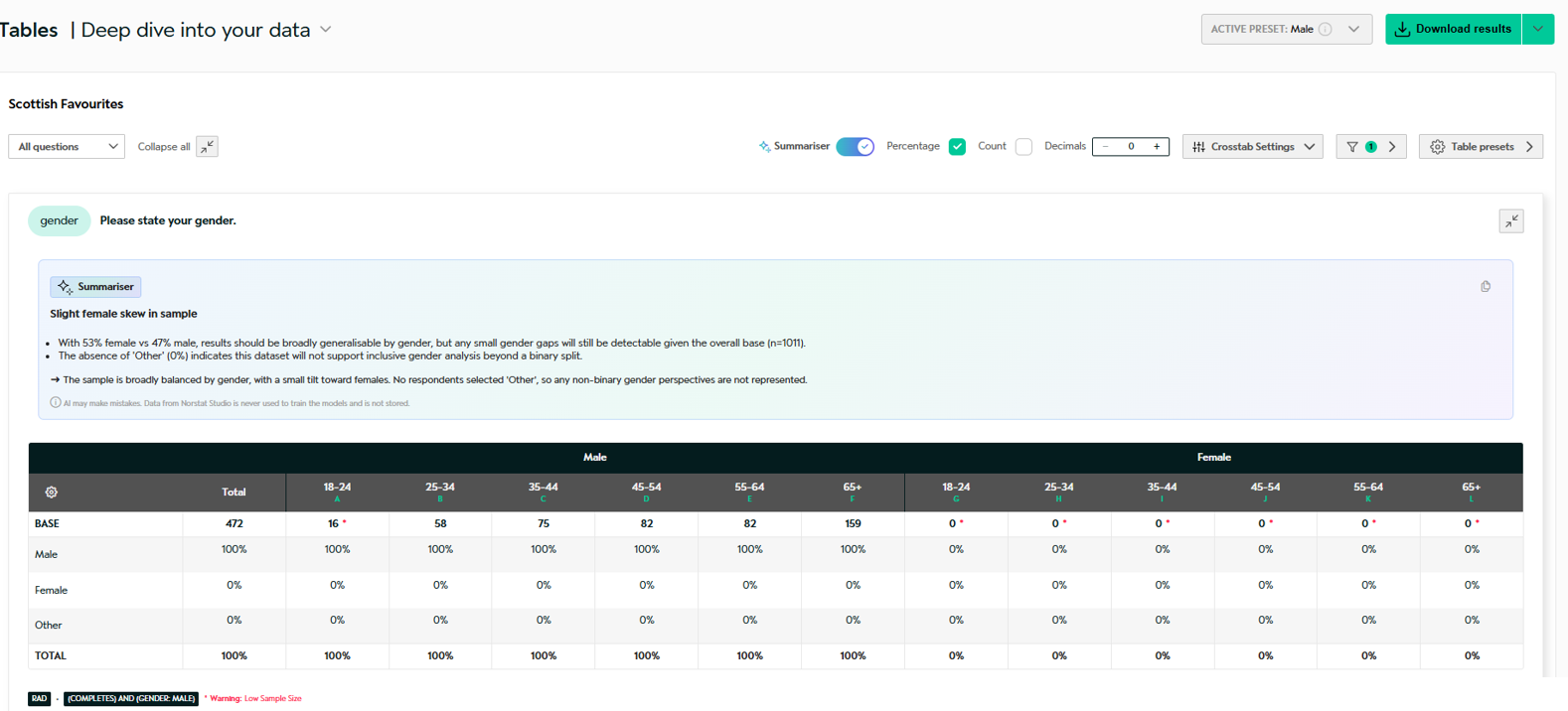
Table settings
There is a range of different settings, that can be applied to customise it completely to your needs.
Summariser
Activate Summariser to use the insights generated. This will give you insights above each question.
If you change Headers, Weights or Filters, you must re-run the Summariser again. This is because Summariser includes these factors when running its AI-analysis.
Basic settings
You can easily change between Percentage/Count and Decimal settings. Click on Crosstab Settings to change your headers (find a guide below) and access your filter settings from the Funnel icon.
Crosstab Settings
From Crosstab Settings, you can manage and change your Headers. A guide on how to Create headers, can be found further below.
Filters
To add a filter, first click on the Funnel. 
Then click 'Add conditions' to add your preferred filters.
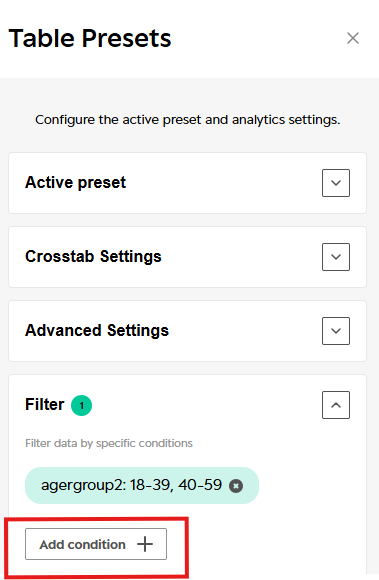
When hovering the filter, you can see which conditions have been applied.

Advanced Settings
Click on In Table Presets to access 'Advanced Settings'.
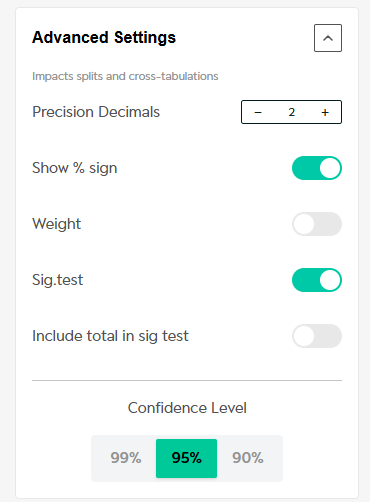
Here you can mange the following setting.
- Precision decimals: Choose how many precision decimals you want to show.
- Show % sign: Toogle % on/off.
- Weight: If your dataset is weighted, you can toogle on and off the weights
- Sig. test: Enable or disable signifiance testing. d
- Include total in Sig. test
- Confidence level: Choose between 90, 95 or 99. Default setting ) 95.
Presets
This is an overarching setting, which is used across Studio.
You can create different Presets and swap between your saved.

Each Preset can have different settings, and everytime you do changes you must save the changes to your Active preset.
Why different presets?
This gives you the chance to work with different settings - e.g. having a preset for Men and one for Women.
Creating your own headers
What is a header?
A header defines how your data is grouped and compared in Tables, Summariser and Slides.
Every time you create or change a header, you decide:
Which groups you want to compare
What Summariser will analyse
How your slides will be structured
If you don’t create your own header, Studio will only use default Headers, made by your Norstat Project Manager.
Important: Headers control your insights
When you change a header, you must run Summariser again. This is because Summariesr uses your headers to decide how your data is analysed.
If you want new Summariser insights in Tables, always re-run your prompt after changing headers.
1) Create a simple header
Use this when you want to create simple headers based on demography or other relevant questions. E.g. gender, age, region.
How to create your headers
Open Crosstab Settings
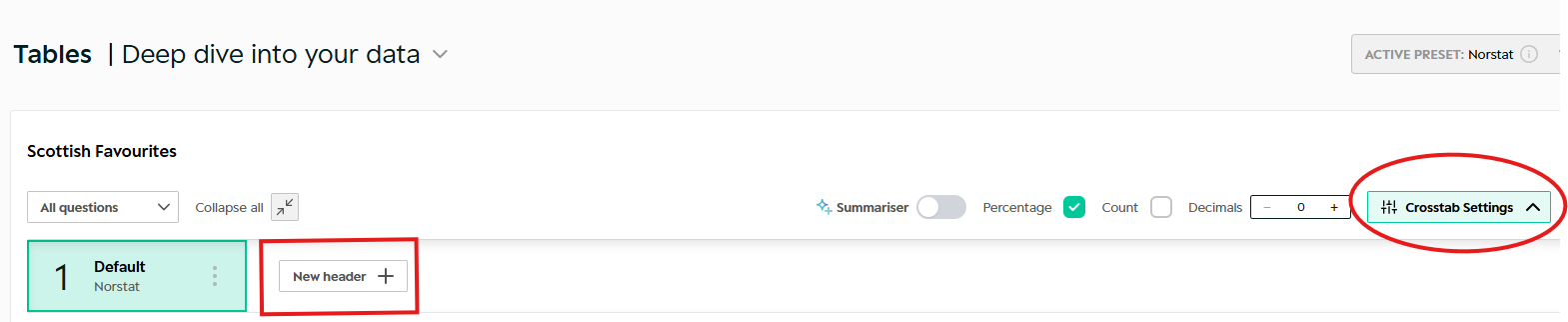
Click New Header
Click Add Header Group
Select the question you want to use (e.g. Gender)
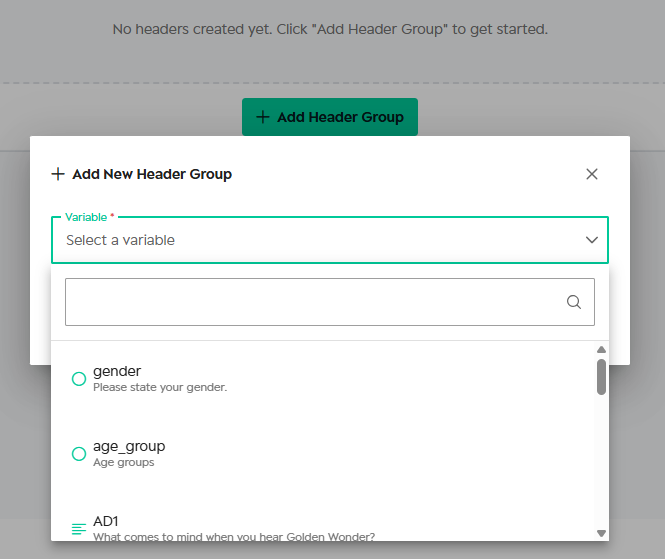
Select the answers you want to show
Give the header a name
Click Save
You can now switch between your headers at the top of Tables.
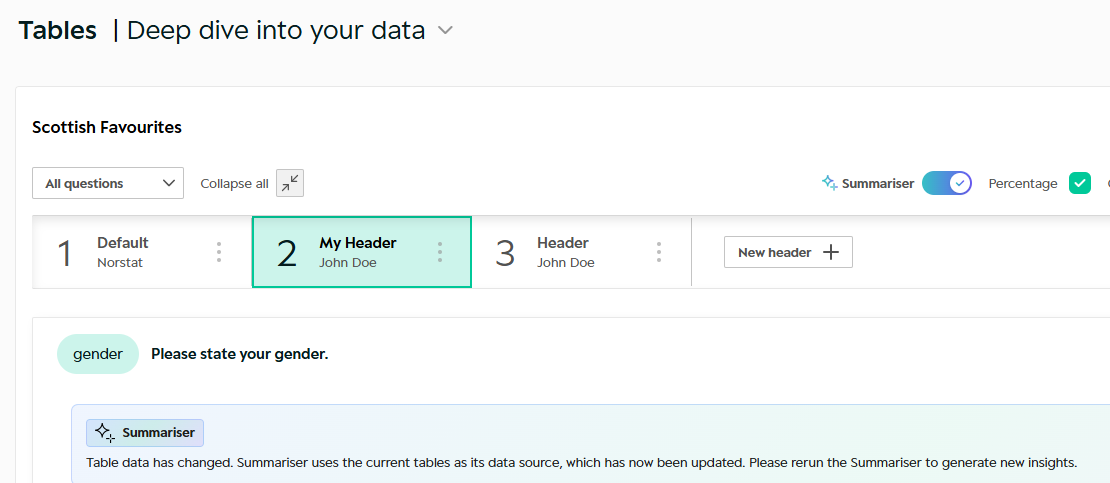
When you change your Headers, you will need to do a new prompt, in order to use the Summariser insights. This is because Summariser uses your Headers as part of the Summary & Insights.
2) Combine groups (Nested headers)
Use this when you want to analyse a subgroup, for example Women 18–39. Nested headers let you combine two questions into one group.
Example
Women 18–39 vs Men 18–39
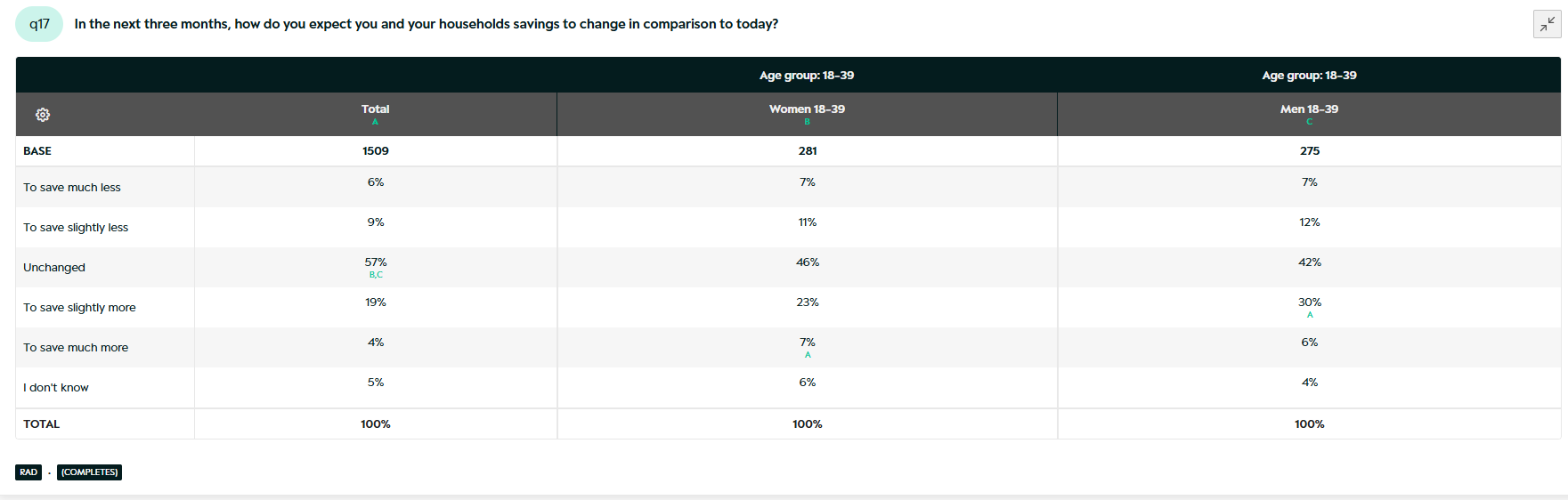
How to create it
Create a header group for the first question (e.g. Age 18–39)
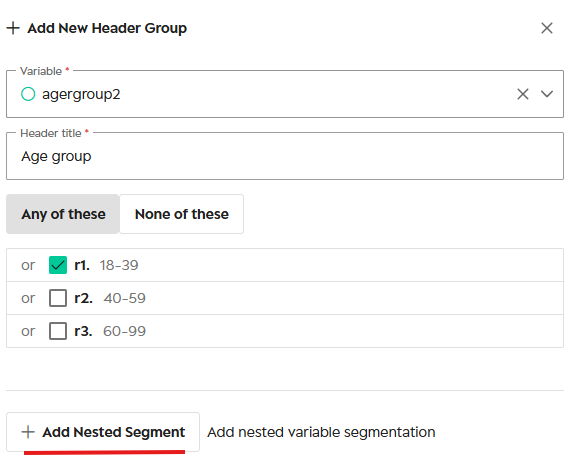
Click Add Nested Segment
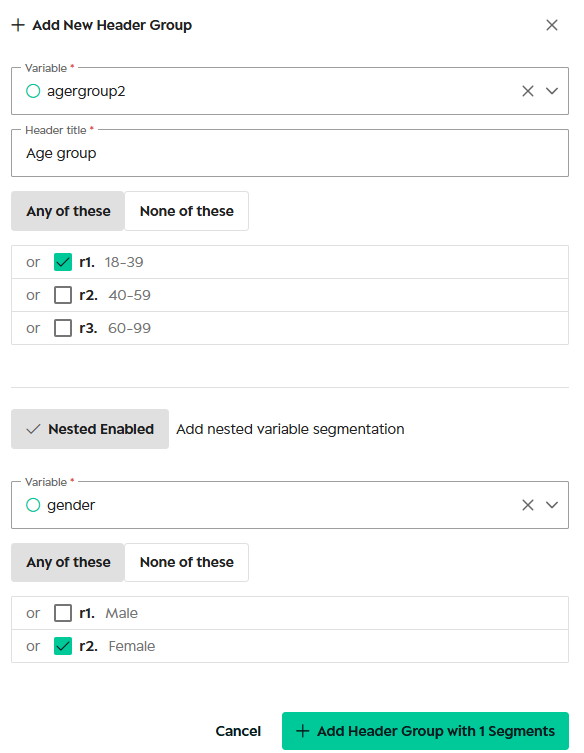
Select the second question (e.g. Gender)
Choose the segment (e.g. Female)
Change name and press Save
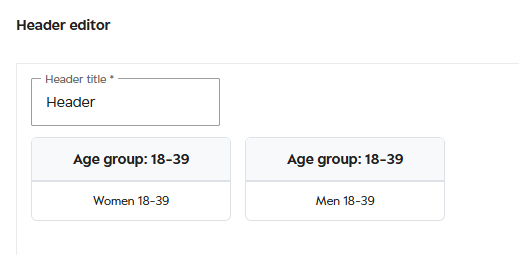
You now have a combined segment like Women 18–39.
3) Recode – combine answers into new groups
Use recode when you want to simplify a scale or group similar answers.
What recode does
Recode lets you merge several answers into one new group. This makes tables, insights and slides easier to read.
Example of a recode
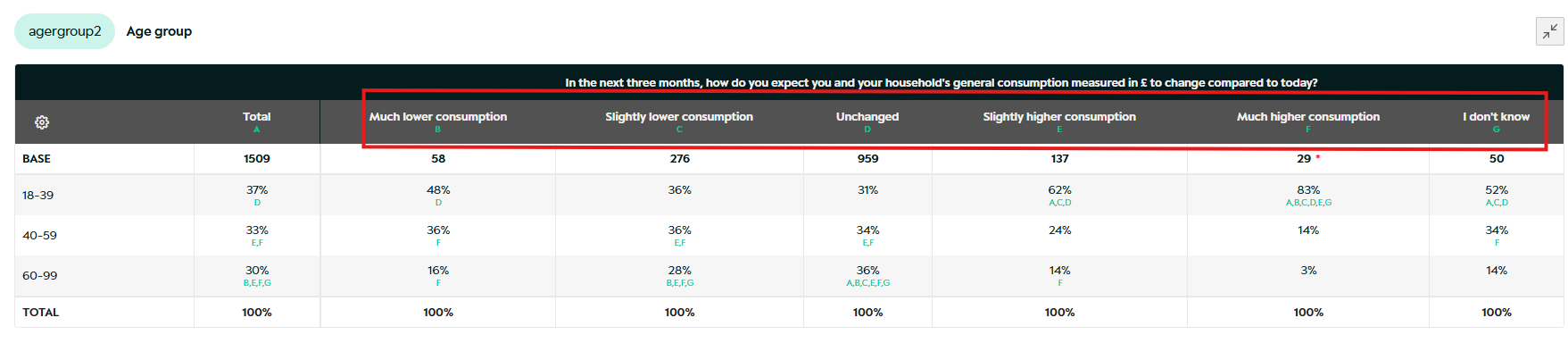
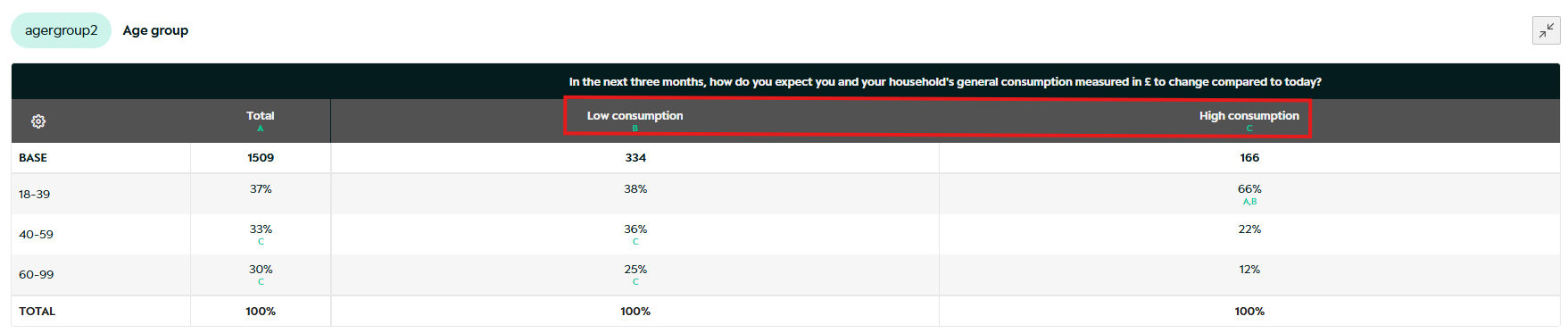
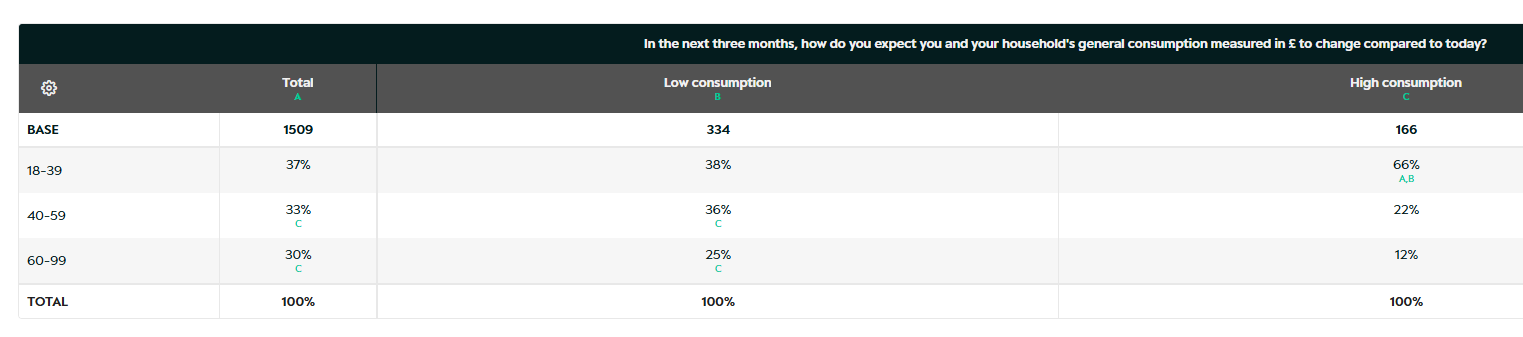
Turn a 5-point scale below into Low and High, by combining and hiding several answers.
From this
To this
How to recode
Step 1 – Open the header you want to edit
Create or open the header group you want to recode.
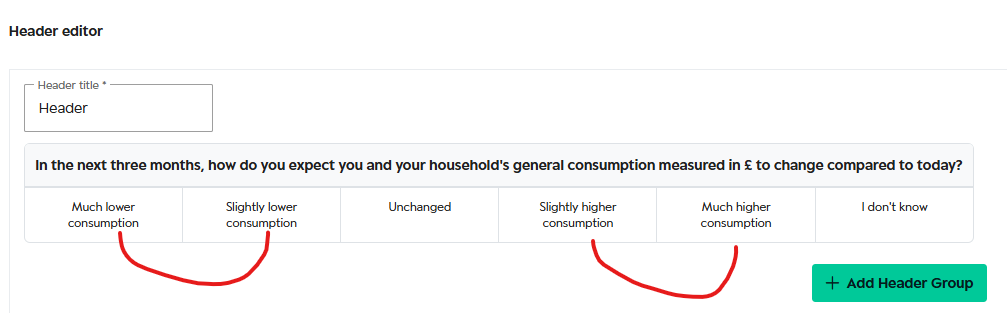
Step 2 – Remove answers you don’t need
Delete any answers you don’t want to include in the final scale (for example Don’t know and Unchanged).
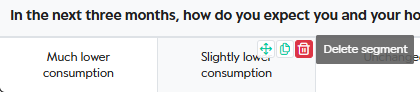
Step 3 – Select the answers to merge
Click one answer you want to include, then select the other answers you want to group together (for example Much lower + Slightly lower) and give it a name (e.g. "Lower consumption").

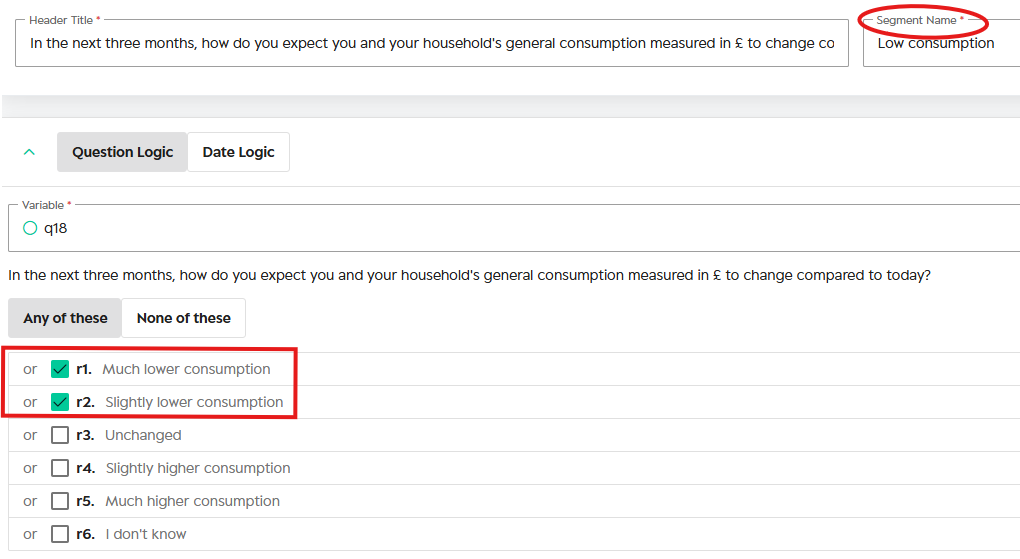
Step 5 – Repeat for the next group
Select the remaining answers and give them a new name (e.g. “Higher Consumption”).
Step 6 – Save
Click Save to apply the recoding.
Grid view
Grid questions now read as a single combined table - giving you the full picture in one view.
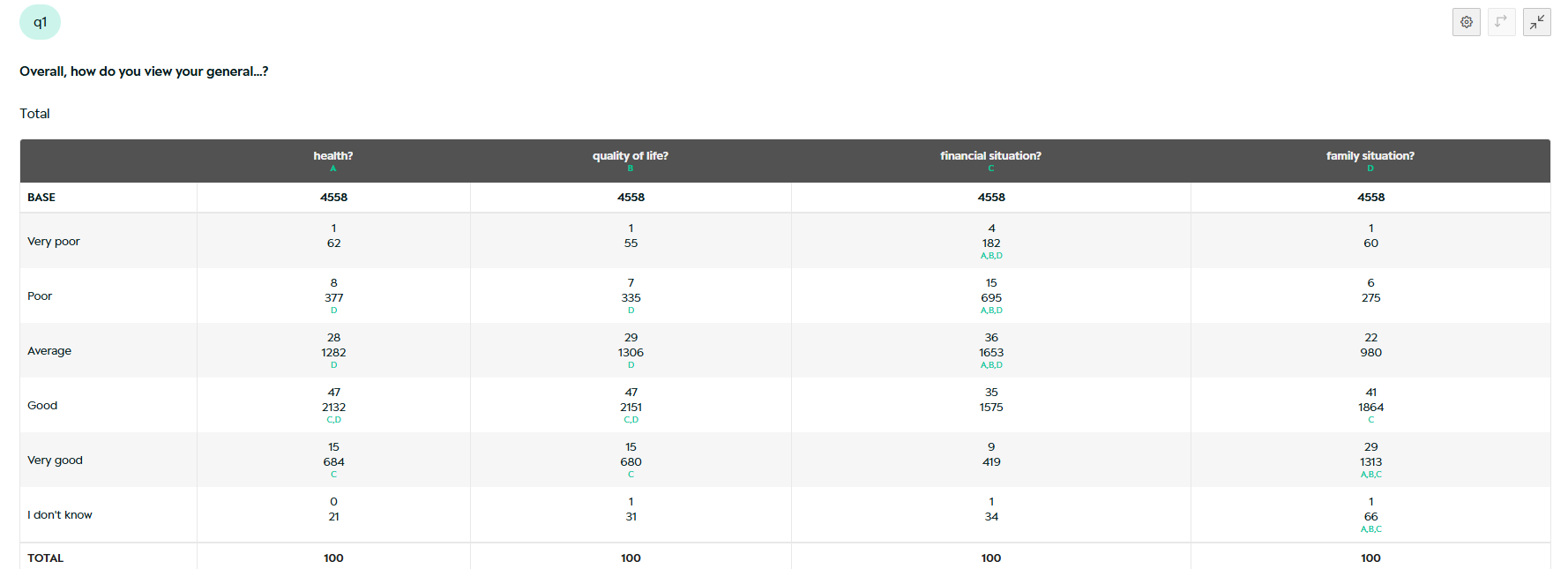
What is a grid question?
A grid question shows multiple sub-questions in one table - for example rating health, quality of life, and financial situation on the same scale. Previously each sub-question appeared as a separate table. With Grid view, they are combined into one.
What you can do with Grid view:
- Read the full grid as one combined table per question
- Break down by total and/or segments
- Fine-tune display settings for % sign and decimals
How to enable Grid view:
- Open Advanced Settings from In Table Presets
- Toggle on Grid view
- Choose between Total only or Total and segments
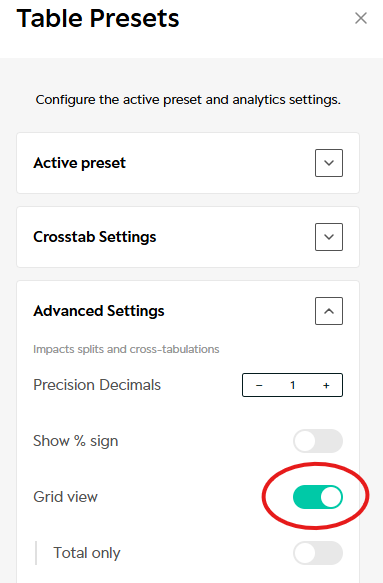
Changes apply immediately to the grid questions in your table.
Transpose
Transpose lets you flip rows and columns in one click - in both Tables and Slides.
Read your data the way that tells the story. Transpose any question to swap rows and columns - in both Tables and Slides - no re-run needed.
From this
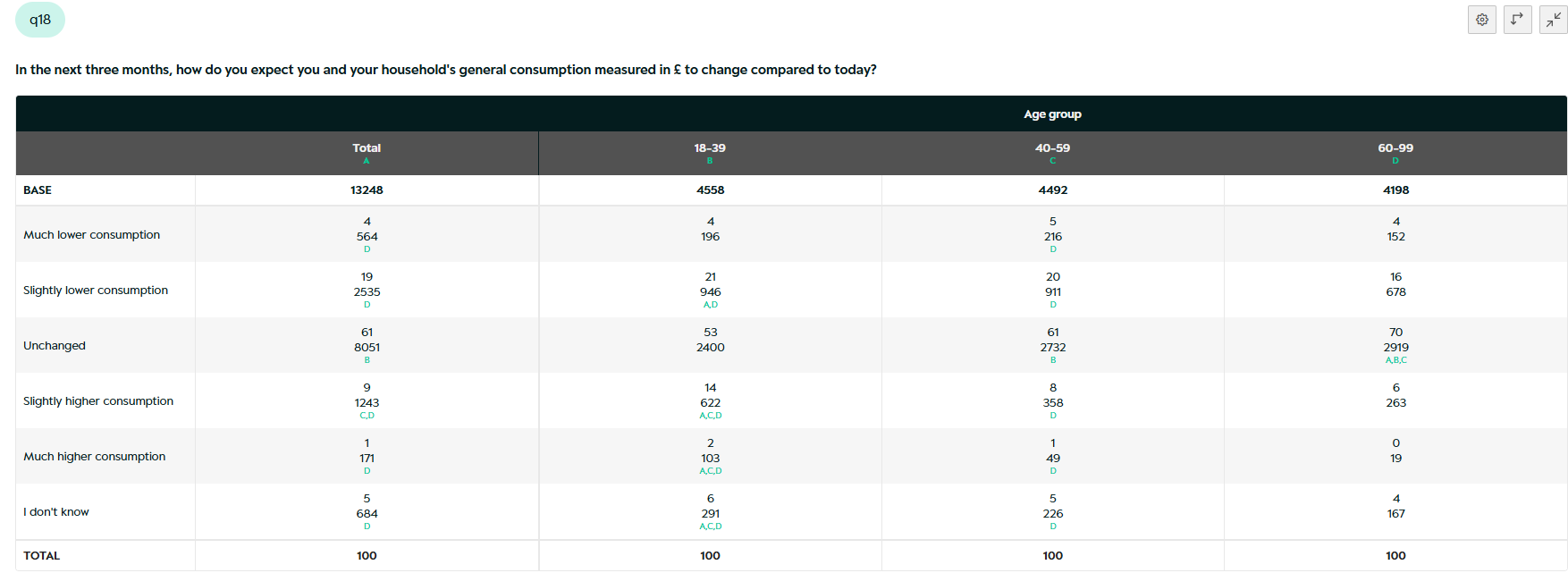
To this
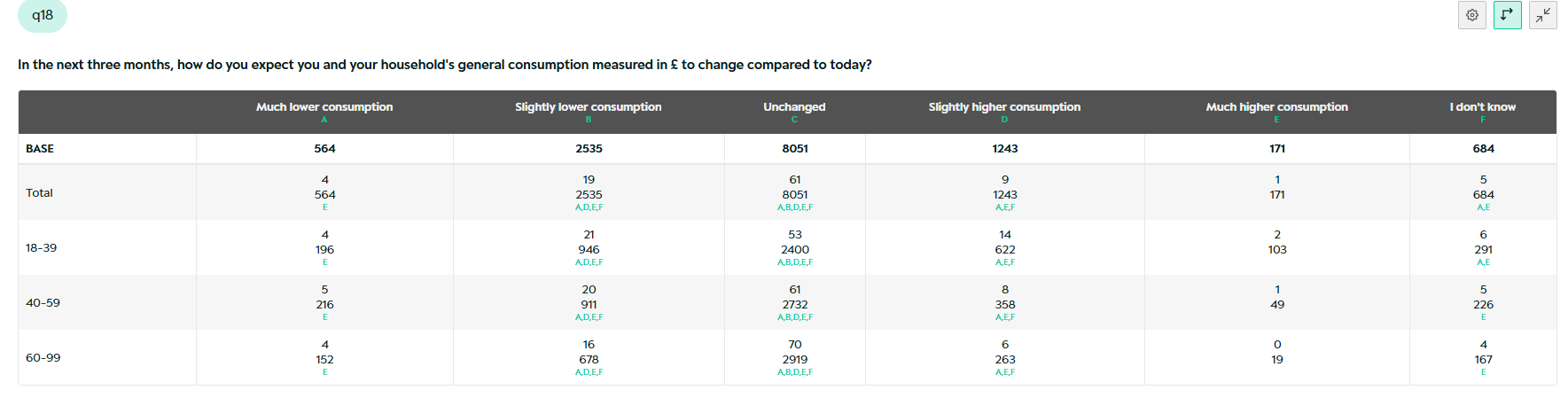
How to transpose:
- Go to the question you want to transpose
- Click the Transpose icon in the top right of the table
- Rows and columns are instantly swapped
The transposed view is reflected in Slides automatically. You can flip back at any time.
Creating Nets & Mean
Customise and build your own means & nets in Tables. You can create custom top-2/bottom-2 nets and automatically calculate mean with standard deviation.
1) Calculate Mean
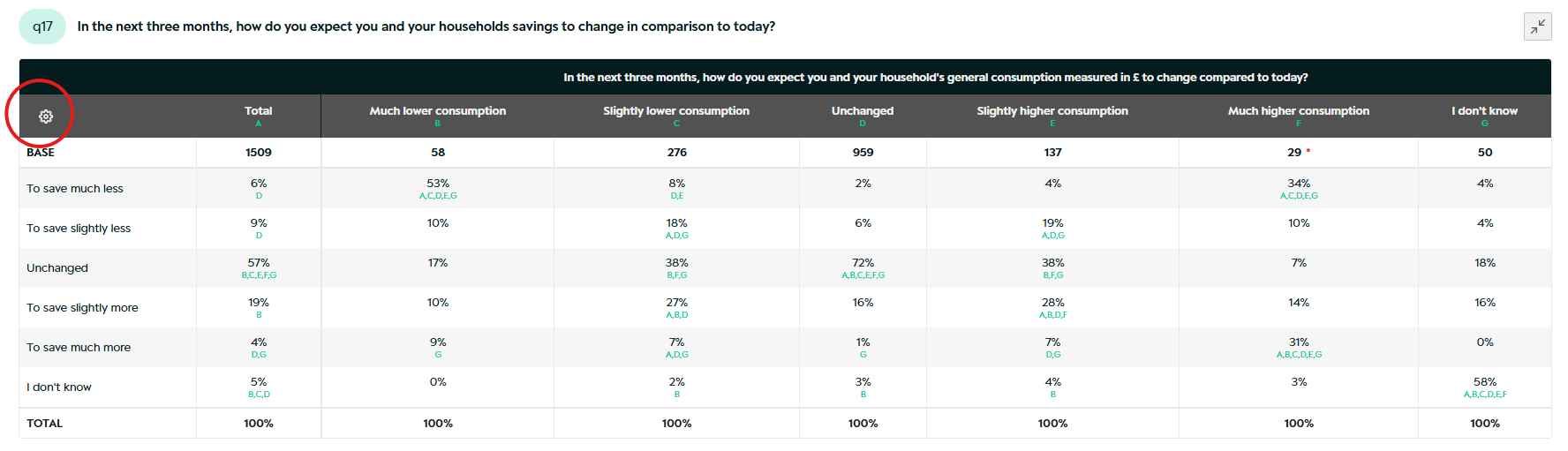
Step 1 - Open Table settings
Click on the wheel to open up the Table settings, from where you create your Mean & Nets.
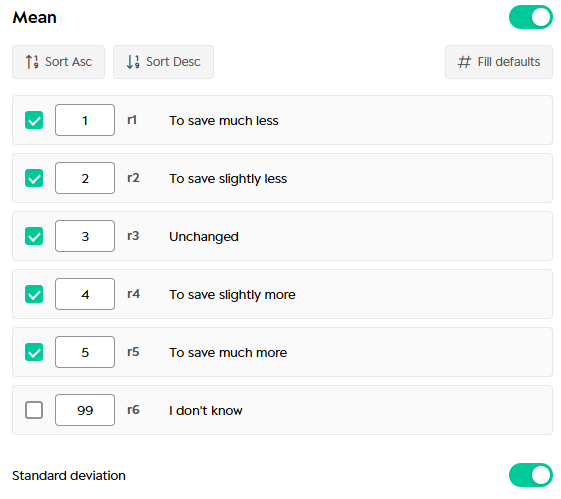
Step 2 - Create your Mean
Toogle on "Mean" and click the answers you want to include in the calculation. Click to hide questions not fitting the scale (e.g. "Don't know", "Other", etc.)
Include Standard Deviation by toggling it on.
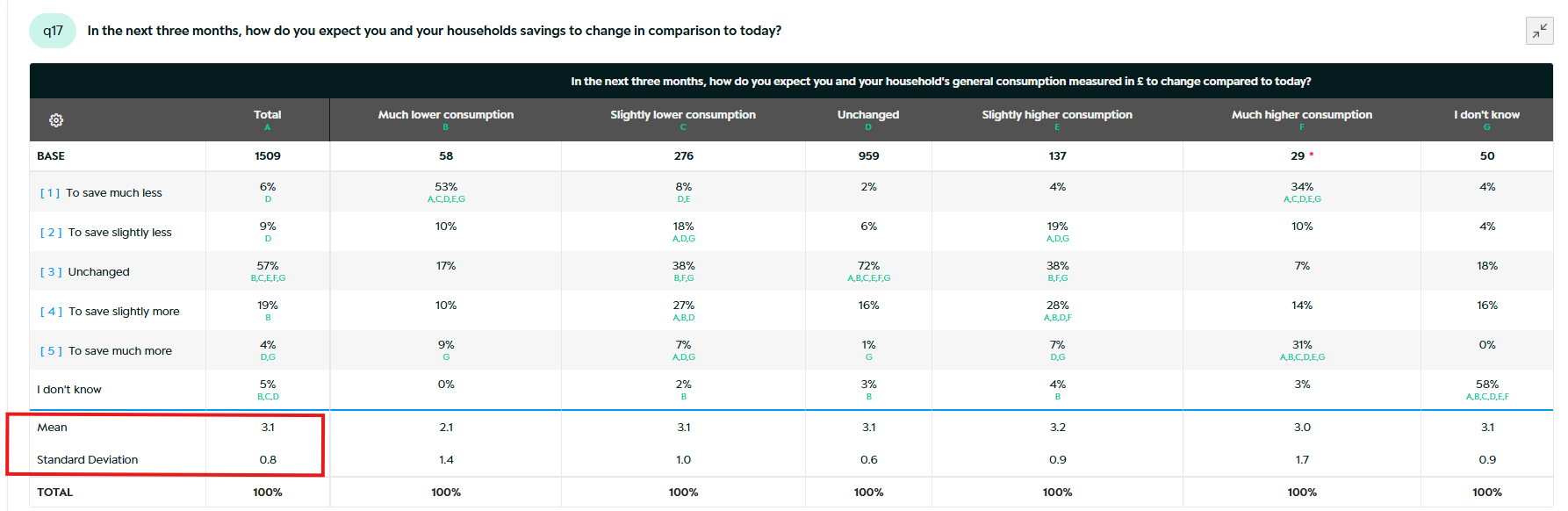
Step 3 - Save
Click Save and check out your Mean and Standard Deviation for your selected question in the Tables.
2) Create NETS (Classic)
Step 1 - Open Table settings
Click on the wheel to open up the Table settings, from where you create your Mean & Nets.
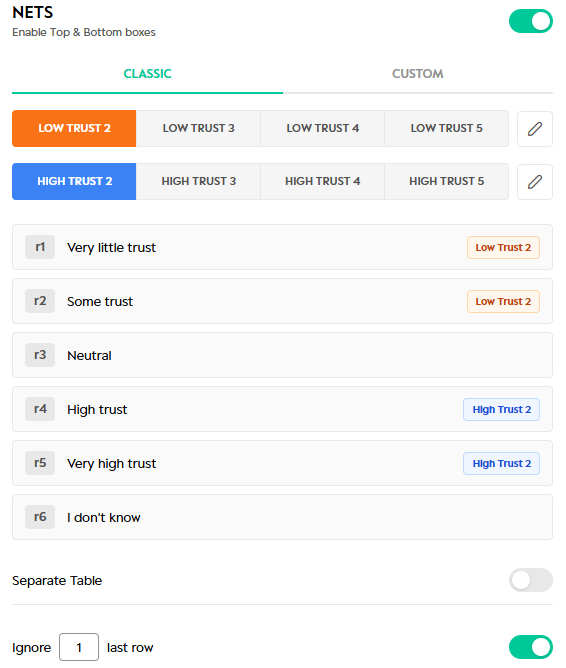
Step 2 - Enable Top & Bottom boxes
Toogle on NETS to enable Top & Bottom boxes.
Define how many rows you want to ignore in the bottom. Use if you have an answer not fitting the scale. (e.g. "Don't know", "Other", etc.)
You can customise how many rows should be included in top and bottom & change names.
Step 3 - Save
Click Save and check out your Top/Bottom boxes.
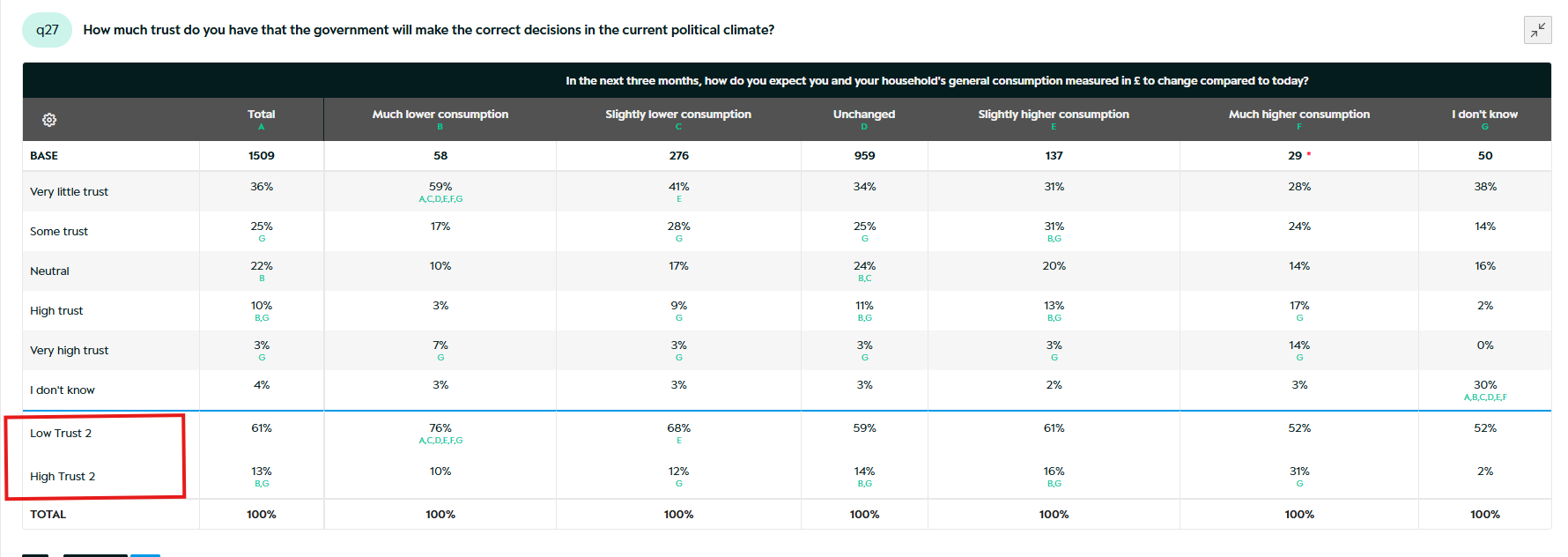
3) Create NETS (Custom)
Step 1 - Open Table settings
Click on the wheel to open up the Table settings, from where you create your Mean & Nets.
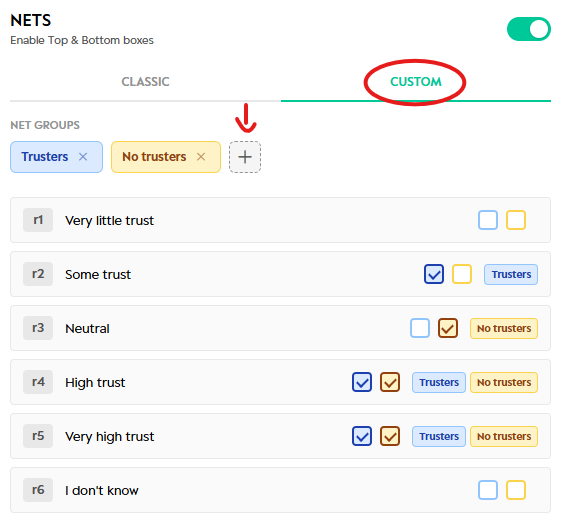
Step 2 - Define your row
Click on Custom and define which answers should be part of your row. You can change the name and add different rows for comparison.
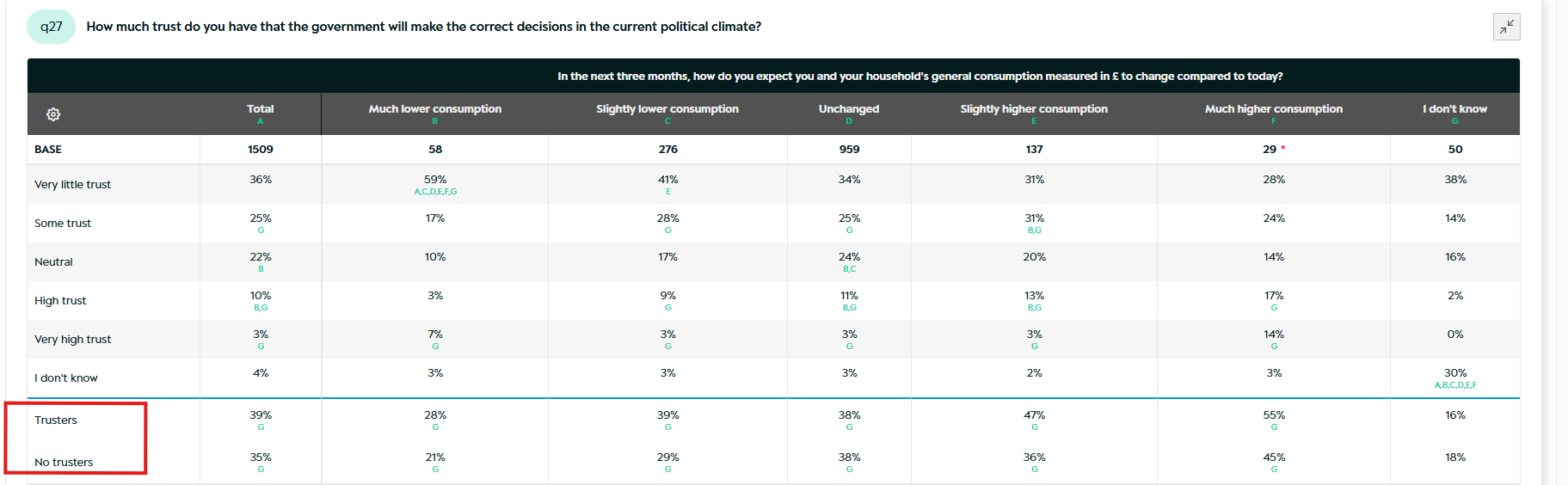
Step 3 - Save your rows
Click save and check out your new Rows in the Tables.
Downloading Results
From the top right corner, you can Download your Tables.

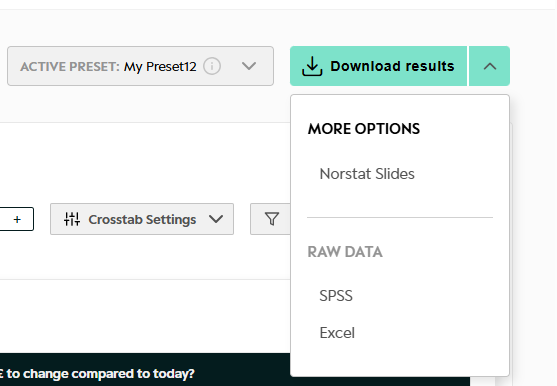
Download Results: This will download your data in Tables
Norstat Slides: This will download your data in Slides. If you already modified your Slides, it will use the latest version.
Raw data: This will give you the latest version of raw data in either SPSS or Tables.
Was this article helpful?
That’s Great!
Thank you for your feedback
Sorry! We couldn't be helpful
Thank you for your feedback
Feedback sent
We appreciate your effort and will try to fix the article